
OAuth Providers
Fluxbase supports OAuth 2.0 and OpenID Connect (OIDC) authentication with multiple providers. Integrate with identity providers like Google, GitHub, Microsoft, Apple, and any OIDC-compliant provider.
Overview
Section titled “Overview”OAuth authentication enables:
- Social login - Users sign in with existing accounts (Google, GitHub, etc.)
- Enterprise SSO - Integrate with corporate identity providers
- Custom OIDC - Connect any OIDC-compliant provider (Keycloak, Auth0, Authelia)
- Automatic provisioning - Create users on first login
Supported Providers
Section titled “Supported Providers”Fluxbase includes built-in support for well-known providers and custom OIDC providers:
| Provider | Type | Auto-Discovery |
|---|---|---|
| Well-known | Yes | |
| GitHub | Well-known | Yes |
| Microsoft/Azure AD | Well-known | Yes |
| Apple | Well-known | Yes |
| Well-known | Yes | |
| Twitter (X) | Well-known | Yes |
| Well-known | Yes | |
| GitLab | Well-known | Yes |
| Bitbucket | Well-known | Yes |
| Keycloak | Custom OIDC | Requires issuer_url |
| Auth0 | Custom OIDC | Requires issuer_url |
| Authelia | Custom OIDC | Requires issuer_url |
| Any OIDC Provider | Custom OIDC | Requires issuer_url |
Provider-Specific Configuration
Section titled “Provider-Specific Configuration”Each OAuth provider has different requirements for scopes and refresh tokens:
| Provider | OIDC | Refresh Token Mechanism | Required Scopes |
|---|---|---|---|
| Yes | access_type=offline + prompt=consent (auto) | openid, email, profile | |
| GitHub | No | Different mechanism (GitHub Apps) | read:user, user:email |
| Microsoft | Yes | OIDC authorization code flow | openid, email, profile, offline_access |
| GitLab | Yes | OIDC authorization code flow | read_user, openid, email, offline_access |
| Apple | No | Short-lived tokens only | email, name |
| No | Long-lived tokens via API (no refresh) | email, public_profile | |
| Twitter (X) | No | OAuth 2.0 PKCE flow | offline.access, users.read, tweet.read |
| No | Auto-issued refresh_token | openid, profile, email | |
| Bitbucket | Yes | Rotating refresh tokens | account, email |
| OIDC Providers | Yes | OIDC authorization code flow | openid, email, profile, offline_access |
Notes:
- Google: Fluxbase automatically adds
access_type=offlineandprompt=consentparameters - GitHub: Not fully OIDC-compliant; refresh tokens require GitHub Apps setup
- Apple: Tokens are short-lived; users must re-authenticate periodically
- Facebook: No standard refresh tokens; consider implementing long-lived token exchange
- Twitter (X): Note the scope uses a dot (
offline.access), not underscore
Configuration
Section titled “Configuration”YAML Configuration
Section titled “YAML Configuration”Configure OAuth providers in your fluxbase.yaml:
auth:  oauth_providers:    # Well-known providers (issuer URL auto-detected)    - name: google      enabled: true      client_id: "YOUR_GOOGLE_CLIENT_ID.apps.googleusercontent.com"      client_secret: "YOUR_CLIENT_SECRET"      scopes: [openid, email, profile]      display_name: "Google"
    - name: github      enabled: true      client_id: "YOUR_GITHUB_CLIENT_ID"      client_secret: "YOUR_CLIENT_SECRET"      scopes: [user:email]      display_name: "GitHub"
    - name: microsoft      enabled: true      client_id: "YOUR_AZURE_AD_CLIENT_ID"      client_secret: "YOUR_CLIENT_SECRET"      scopes: [openid, email, profile, offline_access]      display_name: "Microsoft"
    - name: apple      enabled: true      client_id: "com.yourapp.service"      client_secret: "YOUR_APPLE_SECRET"      scopes: [openid, email, name]      display_name: "Apple"
    # Custom OIDC providers (issuer_url required)    - name: keycloak      enabled: true      issuer_url: "https://auth.example.com/realms/main"      client_id: "fluxbase-client"      client_secret: "YOUR_CLIENT_SECRET"      scopes: [openid, email, profile, offline_access]      display_name: "Corporate SSO"
    - name: auth0      enabled: true      issuer_url: "https://your-tenant.auth0.com"      client_id: "YOUR_AUTH0_CLIENT_ID"      client_secret: "YOUR_CLIENT_SECRET"      scopes: [openid, email, profile, offline_access]      display_name: "Auth0"
Configuration Options
Section titled “Configuration Options”| Option | Description | Required |
|---|---|---|
name | Provider identifier (lowercase, e.g., “google”, “keycloak”) | Yes |
enabled | Enable this provider | Yes |
client_id | OAuth client ID from the provider | Yes |
client_secret | OAuth client secret | Yes (except Apple) |
issuer_url | OIDC issuer URL for discovery | Required for custom providers |
scopes | OAuth scopes to request | No (defaults provided) |
display_name | Human-friendly name for UI | No |
Additional options (via Admin API or database):
| Option | Description | Default |
|---|---|---|
authorization_url | Custom authorization endpoint | Auto-discovered |
token_url | Custom token endpoint | Auto-discovered |
user_info_url | Custom userinfo endpoint | Auto-discovered |
allow_dashboard_login | Allow for admin dashboard SSO | false |
allow_app_login | Allow for app user authentication | true |
Via Admin Dashboard
Section titled “Via Admin Dashboard”You can also configure OAuth providers through the admin UI at Authentication → OAuth Providers:
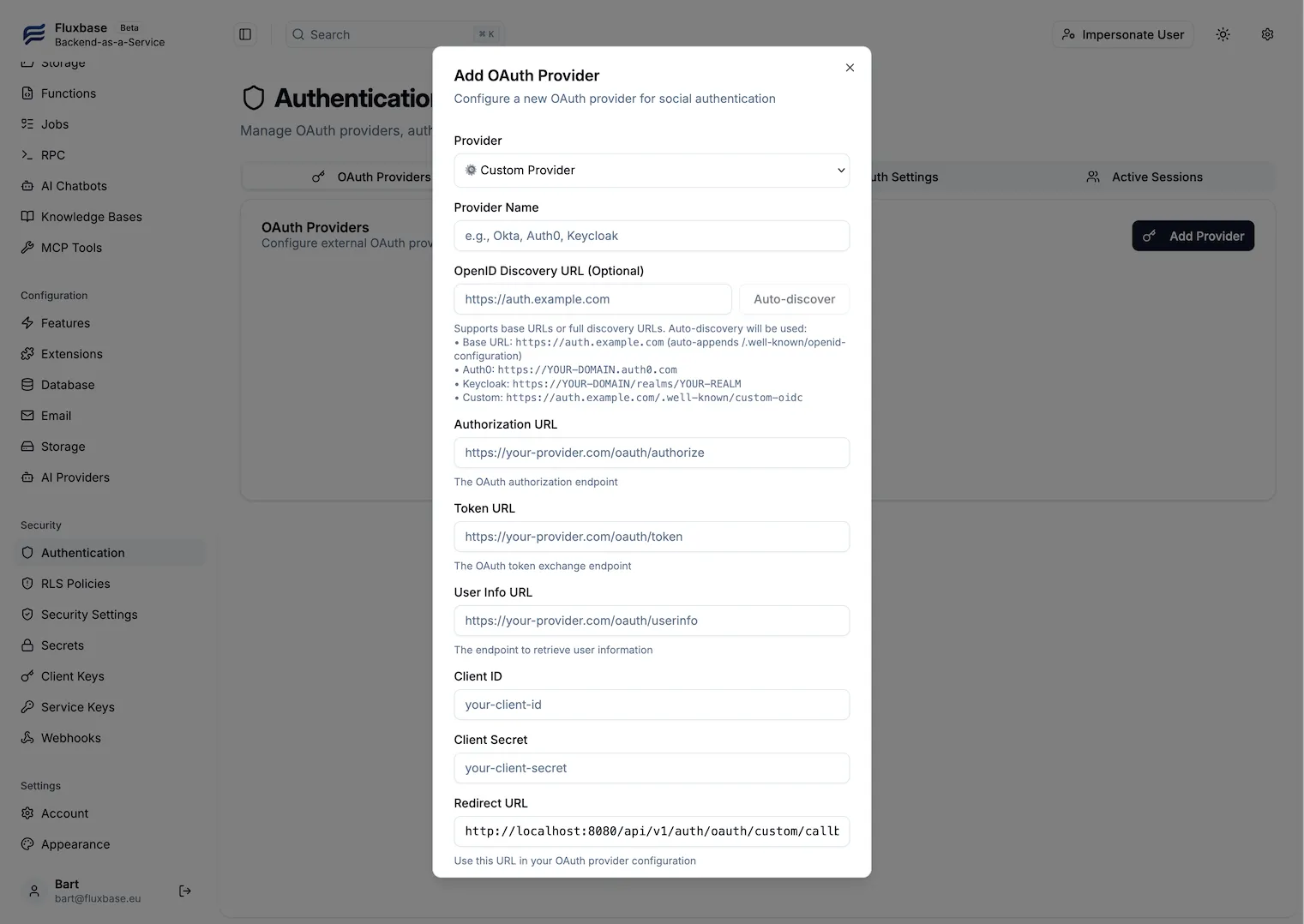
The admin dashboard supports:
- Auto-discovery from OpenID Discovery URLs
- Manual endpoint configuration for non-standard providers
- Provider testing before enabling
- Real-time validation of client credentials
Environment Variables
Section titled “Environment Variables”For deployment, use environment variables with the pattern FLUXBASE_AUTH_OAUTH_PROVIDERS_*:
# First provider (index 0)FLUXBASE_AUTH_OAUTH_PROVIDERS_0_NAME=googleFLUXBASE_AUTH_OAUTH_PROVIDERS_0_ENABLED=trueFLUXBASE_AUTH_OAUTH_PROVIDERS_0_CLIENT_ID=your-google-client-idFLUXBASE_AUTH_OAUTH_PROVIDERS_0_CLIENT_SECRET=your-google-secretFLUXBASE_AUTH_OAUTH_PROVIDERS_0_SCOPES=openid,email,profileFLUXBASE_AUTH_OAUTH_PROVIDERS_0_DISPLAY_NAME=Google
# Second provider (index 1)FLUXBASE_AUTH_OAUTH_PROVIDERS_1_NAME=githubFLUXBASE_AUTH_OAUTH_PROVIDERS_1_ENABLED=trueFLUXBASE_AUTH_OAUTH_PROVIDERS_1_CLIENT_ID=your-github-client-idFLUXBASE_AUTH_OAUTH_PROVIDERS_1_CLIENT_SECRET=your-github-secretFLUXBASE_AUTH_OAUTH_PROVIDERS_1_SCOPES=user:email
# Custom OIDC provider (index 2)FLUXBASE_AUTH_OAUTH_PROVIDERS_2_NAME=keycloakFLUXBASE_AUTH_OAUTH_PROVIDERS_2_ENABLED=trueFLUXBASE_AUTH_OAUTH_PROVIDERS_2_ISSUER_URL=https://auth.example.com/realms/mainFLUXBASE_AUTH_OAUTH_PROVIDERS_2_CLIENT_ID=fluxbase-clientFLUXBASE_AUTH_OAUTH_PROVIDERS_2_CLIENT_SECRET=your-keycloak-secret
Endpoints
Section titled “Endpoints”| Endpoint | Method | Description |
|---|---|---|
/api/v1/auth/oauth/providers | GET | List available OAuth providers (public) |
/api/v1/auth/oauth/:provider/authorize | GET | Initiate OAuth flow (redirects to provider) |
/api/v1/auth/oauth/:provider/callback | GET | OAuth callback handler |
/api/v1/admin/oauth/providers | GET | List all providers (admin) |
/api/v1/admin/oauth/providers | POST | Create new provider (admin) |
/api/v1/admin/oauth/providers/:id | PATCH | Update provider (admin) |
/api/v1/admin/oauth/providers/:id | DELETE | Delete provider (admin) |
Setup Guide
Section titled “Setup Guide”Step 1: Configure Fluxbase
Section titled “Step 1: Configure Fluxbase”Add your OAuth provider configuration:
auth: oauth_providers: - name: google enabled: true client_id: "YOUR_CLIENT_ID" client_secret: "YOUR_CLIENT_SECRET" scopes: [openid, email, profile]Step 2: Configure Your Provider
Section titled “Step 2: Configure Your Provider”Register your application with the OAuth provider and set the redirect URI:
https://your-domain.com/api/v1/auth/oauth/{provider}/callbackFor example:
- Google:
https://your-domain.com/api/v1/auth/oauth/google/callback - GitHub:
https://your-domain.com/api/v1/auth/oauth/github/callback
Step 3: Test Login
Section titled “Step 3: Test Login”# Open in browser to initiate OAuth flowopen "https://your-domain.com/api/v1/auth/oauth/google/authorize?redirect_to=https://your-domain.com/dashboard"Provider-Specific Setup
Section titled “Provider-Specific Setup”- Go to Google Cloud Console → APIs & Services → Credentials
- Click Create Credentials → OAuth 2.0 Client ID
- Select Web application
- Add authorized redirect URI:
https://your-domain.com/api/v1/auth/oauth/google/callback - Copy the Client ID and Client Secret
auth: oauth_providers: - name: google enabled: true client_id: "YOUR_CLIENT_ID.apps.googleusercontent.com" client_secret: "YOUR_CLIENT_SECRET" scopes: [openid, email, profile]GitHub
Section titled “GitHub”- Go to GitHub Developer Settings → OAuth Apps → New OAuth App
- Set Authorization callback URL:
https://your-domain.com/api/v1/auth/oauth/github/callback - Copy the Client ID and generate a Client Secret
auth: oauth_providers: - name: github enabled: true client_id: "YOUR_CLIENT_ID" client_secret: "YOUR_CLIENT_SECRET" scopes: [user:email]Microsoft/Azure AD
Section titled “Microsoft/Azure AD”- Go to Azure Portal → Azure Active Directory → App registrations
- Click New registration
- Add redirect URI:
https://your-domain.com/api/v1/auth/oauth/microsoft/callback - Go to Certificates & secrets → New client secret
auth: oauth_providers: - name: microsoft enabled: true client_id: "YOUR_APPLICATION_CLIENT_ID" client_secret: "YOUR_CLIENT_SECRET" scopes: [openid, email, profile]- Go to Apple Developer Portal → Certificates, Identifiers & Profiles
- Create a Services ID with Sign in with Apple enabled
- Configure the return URL:
https://your-domain.com/api/v1/auth/oauth/apple/callback - Create a Key for Sign in with Apple
auth: oauth_providers: - name: apple enabled: true client_id: "com.yourapp.service" client_secret: "YOUR_APPLE_SECRET" # Generated JWT scopes: [openid, email, name]Custom OIDC Providers
Section titled “Custom OIDC Providers”For Keycloak, Auth0, Authelia, or any OIDC-compliant provider:
Keycloak:
auth: oauth_providers: - name: keycloak enabled: true issuer_url: "https://keycloak.example.com/realms/myrealm" client_id: "fluxbase" client_secret: "YOUR_CLIENT_SECRET" scopes: [openid, email, profile] display_name: "Corporate SSO"Auth0:
auth: oauth_providers: - name: auth0 enabled: true issuer_url: "https://your-tenant.auth0.com" client_id: "YOUR_AUTH0_CLIENT_ID" client_secret: "YOUR_AUTH0_CLIENT_SECRET" scopes: [openid, email, profile] display_name: "Auth0"Authelia:
auth: oauth_providers: - name: authelia enabled: true issuer_url: "https://auth.example.com" client_id: "fluxbase" client_secret: "YOUR_AUTHELIA_SECRET" scopes: [openid, email, profile] display_name: "Authelia"SDK Usage
Section titled “SDK Usage”TypeScript SDK
Section titled “TypeScript SDK”Initiate OAuth flow:
import { FluxbaseClient } from "@nimbleflux/fluxbase-sdk";
const client = new FluxbaseClient({ url: "https://api.example.com" });
// Get available OAuth providersconst { data: providers } = await client.auth.getOAuthProviders();// [{ name: 'google', display_name: 'Google' }, ...]
// Get OAuth authorization URLconst { data } = await client.auth.signInWithOAuth({  provider: "google",  options: {    redirectTo: `${window.location.origin}/auth/callback`,  },});
// Redirect to providerwindow.location.href = data.url;
Handle callback:
// In your /auth/callback routeconst code = searchParams.get("code");const state = searchParams.get("state");
const { user, session } = await client.auth.exchangeCodeForSession({  code,  state,});
// User is now authenticatedconsole.log("Logged in as:", user.email);
React SDK
Section titled “React SDK”import { useOAuthProviders, useSignInWithOAuth, useSession,} from "@nimbleflux/fluxbase-sdk-react";
function OAuthLoginButtons() { const { data: providers, isLoading } = useOAuthProviders(); const signIn = useSignInWithOAuth();
if (isLoading) return <div>Loading...</div>;
return ( <div> {providers?.map((provider) => ( <button key={provider.name} onClick={() => signIn.mutate({ provider: provider.name, redirectTo: "/dashboard", }) } > Sign in with {provider.display_name || provider.name} </button> ))} </div> );}Handling callback:
import { useEffect } from "react";import { useSession } from "@nimbleflux/fluxbase-sdk-react";import { useNavigate } from "react-router-dom";
function OAuthCallback() {  const { data: session, isLoading } = useSession();  const navigate = useNavigate();
  useEffect(() => {    if (!isLoading && session) {      navigate("/dashboard");    }  }, [session, isLoading]);
  return <div>Completing sign in...</div>;}
REST API
Section titled “REST API”List Providers (Public)
Section titled “List Providers (Public)”GET /api/v1/auth/oauth/providersResponse:
{ "providers": [ { "name": "google", "display_name": "Google", "enabled": true }, { "name": "github", "display_name": "GitHub", "enabled": true } ]}Initiate OAuth Login
Section titled “Initiate OAuth Login”GET /api/v1/auth/oauth/:provider/authorize?redirect_to=https://myapp.example.com/dashboardRedirects to provider’s authorization page.
List All Providers (Admin)
Section titled “List All Providers (Admin)”GET /api/v1/admin/oauth/providersAuthorization: Bearer <admin-token>Response:
{ "providers": [ { "id": "uuid", "provider_name": "google", "display_name": "Google", "client_id": "xxx.apps.googleusercontent.com", "enabled": true, "scopes": ["openid", "email", "profile"], "allow_dashboard_login": false, "allow_app_login": true, "created_at": "2024-01-01T00:00:00Z" } ]}Create Provider (Admin)
Section titled “Create Provider (Admin)”POST /api/v1/admin/oauth/providersAuthorization: Bearer <admin-token>Content-Type: application/json
{ "provider_name": "okta", "display_name": "Okta SSO", "enabled": true, "client_id": "YOUR_OKTA_CLIENT_ID", "client_secret": "YOUR_OKTA_SECRET", "is_custom": true, "authorization_url": "https://your-org.okta.com/oauth2/v1/authorize", "token_url": "https://your-org.okta.com/oauth2/v1/token", "user_info_url": "https://your-org.okta.com/oauth2/v1/userinfo", "scopes": ["openid", "email", "profile"], "allow_dashboard_login": true, "allow_app_login": true}Update Provider (Admin)
Section titled “Update Provider (Admin)”PATCH /api/v1/admin/oauth/providers/:idAuthorization: Bearer <admin-token>Content-Type: application/json
{ "enabled": false, "display_name": "Updated Name"}Delete Provider (Admin)
Section titled “Delete Provider (Admin)”DELETE /api/v1/admin/oauth/providers/:idAuthorization: Bearer <admin-token>Security
Section titled “Security”Token Encryption
Section titled “Token Encryption”OAuth tokens are encrypted at rest using AES-256-GCM. Configure an encryption key:
# Must be exactly 32 bytesFLUXBASE_ENCRYPTION_KEY=your-32-byte-encryption-key-hereCSRF Protection
Section titled “CSRF Protection”Fluxbase automatically generates and validates state tokens to prevent CSRF attacks:
- State tokens expire after 10 minutes
- Tokens are cryptographically random
- Validation is enforced on callback
Best Practices
Section titled “Best Practices”| Practice | Description |
|---|---|
| Use HTTPS in production | OAuth requires secure connections |
| Protect client secrets | Store in environment variables, never in code |
| Use PKCE | Fluxbase supports PKCE for enhanced security |
| Limit scopes | Only request necessary permissions |
| Rotate secrets | Periodically rotate client secrets |
| Monitor OAuth usage | Watch for unusual patterns and failed attempts |
| Validate redirect URIs | Use exact match, avoid wildcards |
Role-Based Access Control (RBAC)
Section titled “Role-Based Access Control (RBAC)”Control which users can authenticate based on claims in their OAuth ID token (roles, groups, permissions, etc.).
Claims-Based Access Control
Section titled “Claims-Based Access Control”Restrict OAuth authentication based on ID token claims:
auth:  oauth_providers:    - name: google      enabled: true      client_id: "YOUR_CLIENT_ID"      client_secret: "YOUR_CLIENT_SECRET"      scopes: [openid, email, profile]      allow_dashboard_login: true
      # RBAC configuration      required_claims:        roles:          - "admin" # User must have at least ONE of these role values          - "editor"        department:          - "IT"          - "Engineering"
      denied_claims:        status:          - "suspended" # Reject users with ANY of these status values          - "inactive"
RBAC Rules
Section titled “RBAC Rules”Two types of claim validation rules:
| Rule | Logic | Example Use Case |
|---|---|---|
required_claims | User must have at least ONE matching value per claim | Require admin OR editor role |
denied_claims | Reject if ANY value matches | Block suspended or inactive users |
Execution order: Denied claims are checked first (highest priority), then required claims.
Claim Value Types
Section titled “Claim Value Types”OAuth claims can be strings or arrays. The validation handles both:
{ "roles": "admin", // Single string value "groups": ["admins", "IT"], // Array of strings "level": 5 // Number (converted to string)}Example Configurations
Section titled “Example Configurations”Dashboard admin access (Google Workspace)
Only users with admin role can access the dashboard:
auth: oauth_providers: - name: google enabled: true client_id: "YOUR_CLIENT_ID.apps.googleusercontent.com" client_secret: "YOUR_CLIENT_SECRET" scopes: [openid, email, profile] allow_dashboard_login: true allow_app_login: false required_claims: hd: ["company.com"] # Google Workspace domain role: ["admin", "superuser"]Azure AD group-based access
Restrict access based on Azure AD group membership:
auth: oauth_providers: - name: microsoft enabled: true client_id: "YOUR_AZURE_CLIENT_ID" client_secret: "YOUR_CLIENT_SECRET" scopes: [openid, email, profile] allow_dashboard_login: true required_claims: groups: - "FluxbaseAdmins" # Azure AD group name - "ApplicationAdmins" denied_claims: groups: - "Contractors"Auth0 with custom claims
Use Auth0 app_metadata or custom claims:
auth: oauth_providers: - name: auth0 enabled: true issuer_url: "https://your-tenant.auth0.com" client_id: "YOUR_CLIENT_ID" client_secret: "YOUR_CLIENT_SECRET" scopes: [openid, email, profile] allow_dashboard_login: true required_claims: "https://myapp.com/roles": - "admin" "https://myapp.com/subscription": - "premium" - "enterprise"Keycloak realm roles
Filter by Keycloak realm or client roles:
auth: oauth_providers: - name: keycloak enabled: true issuer_url: "https://auth.company.com/realms/main" client_id: "fluxbase-client" client_secret: "YOUR_CLIENT_SECRET" scopes: [openid, email, profile, roles] allow_dashboard_login: true required_claims: realm_access.roles: - "fluxbase-admin" denied_claims: account_status: - "locked" - "suspended"Error Messages
Section titled “Error Messages”When claim validation fails, users see clear error messages:
"Access denied: claim 'roles' has restricted value 'contractor'"- User has denied claim value"Access denied: missing required claim 'roles'"- Required claim not in ID token"Access denied: claim 'roles' must have one of: [admin, editor]"- User doesn’t have any allowed values
ID Token vs Userinfo
Section titled “ID Token vs Userinfo”Fluxbase validates claims from the OAuth ID token (JWT). The ID token is returned during the token exchange and contains user identity and claims.
For custom claims:
- Configure your IdP to include claims in ID token (not just userinfo endpoint)
- Request appropriate scopes to receive the claims
- Some providers require custom scopes for custom claims
Troubleshooting RBAC
Section titled “Troubleshooting RBAC”“Claims not being found”
Check the ID token structure from your provider:
# Use jwt.io to decode your ID token and inspect claims# Or check browser dev tools Network tab during OAuth callback“Azure AD groups not working”
Azure AD requires specific configuration to include groups in ID token:
- In Azure Portal, go to App registrations → Your app
- Go to Token configuration
- Click Add groups claim
- Select Security groups and Group ID (or sAMAccountName for names)
- Check ID under token type
“Keycloak roles not in token”
Enable role claims in Keycloak:
- Go to Clients → Your client → Mappers
- Add realm roles mapper
- Set Token Claim Name to match your config (e.g.,
realm_access.roles) - Enable Add to ID token
“Auth0 custom claims not appearing”
Auth0 custom claims must use namespaced format:
// Auth0 Rule/Action to add custom claimsfunction(user, context, callback) { const namespace = 'https://myapp.com/'; context.idToken[namespace + 'roles'] = user.app_metadata.roles; callback(null, user, context);}“Claim values are case-sensitive”
Claim values are matched exactly:
"Admin"≠"admin""IT-Team"≠"IT Team"
Check exact values from your IdP.
Dashboard SSO (Admin Login)
Section titled “Dashboard SSO (Admin Login)”OAuth providers can be used for dashboard admin authentication, enabling SSO-only mode.
Enable Dashboard SSO
Section titled “Enable Dashboard SSO”Configure a provider for dashboard login:
auth: oauth_providers: - name: google enabled: true client_id: "YOUR_CLIENT_ID" client_secret: "YOUR_CLIENT_SECRET" scopes: [openid, email, profile]Then via Admin API, enable dashboard login:
PATCH /api/v1/admin/oauth/providers/:id{ "allow_dashboard_login": true}Disable Password Login
Section titled “Disable Password Login”Once SSO is configured for dashboard login:
- Go to Authentication → Auth Settings in the dashboard
- Enable Disable Password Login
- Save settings
When enabled:
- Login page shows only SSO buttons
- Password form is hidden
- Backend rejects password attempts
CLI SSO Login
Section titled “CLI SSO Login”With password login disabled, use SSO for CLI authentication:
# SSO login (opens browser)fluxbase auth login --server https://api.example.com --sso
# Or use an API tokenfluxbase auth login --server https://api.example.com --token your-api-token
Emergency Recovery
Section titled “Emergency Recovery”If locked out due to misconfigured SSO:
FLUXBASE_DASHBOARD_FORCE_PASSWORD_LOGIN=trueThis temporarily re-enables password login.
Linking Accounts
Section titled “Linking Accounts”Link OAuth to Existing Account
Section titled “Link OAuth to Existing Account”// User must be authenticatedconst { url } = await client.auth.linkIdentity({ provider: "github" });window.location.href = url;Unlink OAuth Provider
Section titled “Unlink OAuth Provider”await client.auth.unlinkIdentity({ provider: "github" });Troubleshooting
Section titled “Troubleshooting”| Issue | Solution |
|---|---|
| Redirect URI mismatch | Ensure redirect URI in Fluxbase config exactly matches provider registration (include protocol, no trailing slashes) |
| Invalid state parameter | Enable cookies (state stored in cookie), verify cross-site cookie settings |
| Client secret invalid | Verify secret hasn’t expired, regenerate if needed |
| Users can’t sign in | Check provider returns email, verify scopes include necessary permissions |
| Custom provider not working | Verify issuer_url is accessible, check OIDC discovery endpoint |
| Token encryption errors | Ensure FLUXBASE_ENCRYPTION_KEY is exactly 32 bytes |
| CORS errors | Configure allowed origins in Fluxbase CORS settings |
| Dev vs prod URLs | Use environment variables for redirect URLs |
Refresh Token Issues
Section titled “Refresh Token Issues”If users need to re-authenticate frequently or sessions don’t persist, check provider-specific requirements:
- Mechanism:
access_type=offlineparameter +prompt=consent - Automatic: Fluxbase adds both parameters automatically
- Scopes:
[openid, email, profile]- NOoffline_access
scopes: [openid, email, profile] # ✅ CorrectMicrosoft & GitLab
Section titled “Microsoft & GitLab”- Mechanism: Standard OIDC with
offline_accessscope - Scopes:
[openid, email, profile, offline_access]
scopes: [openid, email, profile, offline_access] # ✅ CorrectGitHub
Section titled “GitHub”- Mechanism: Not OIDC-compliant; uses GitHub App tokens
- Note: Standard OAuth may not provide refresh tokens; consider GitHub Apps
- Scopes:
[read:user, user:email]- NOoffline_access
scopes: [read:user, user:email] # ✅ CorrectTwitter (X)
Section titled “Twitter (X)”- Mechanism: OAuth 2.0 PKCE flow
- Important: Uses dot not underscore!
- Scopes:
[tweet.read, users.read, offline.access]
scopes: [tweet.read, users.read, offline.access] # ✅ Note the dot!- Mechanism: Standard OAuth 2.0
- Note: Issues refresh tokens automatically
- Scopes:
[r_liteprofile, r_emailaddress]
scopes: [r_liteprofile, r_emailaddress] # ✅ CorrectBitbucket
Section titled “Bitbucket”- Mechanism: OAuth 2.0 with rotating refresh tokens
- Scopes:
[account, email]
scopes: [account, email] # ✅ Correct- Mechanism: Short-lived tokens only
- Note: Users must re-authenticate periodically (Apple design)
- Scopes:
[email, name]- No refresh tokens
scopes: [email, name] # ✅ Correct (no refresh token support)- Mechanism: Long-lived tokens via separate API exchange
- Note: Standard OAuth does not provide refresh tokens
- Scopes:
[email, public_profile]
scopes: [email, public_profile] # ✅ Standard (no refresh tokens)Custom OIDC (Keycloak, Auth0, Authelia, etc.)
Section titled “Custom OIDC (Keycloak, Auth0, Authelia, etc.)”- Mechanism: Standard OIDC authorization code flow
- Scopes:
[openid, email, profile, offline_access]
scopes: [openid, email, profile, offline_access] # ✅ CorrectWhy refresh tokens matter:
- Enable long-lived sessions without requiring re-authentication
- Allow automatic token refresh in the background
- Essential for production applications with persistent login
How Fluxbase handles it:
- Automatically adds
access_type=offlinefor all providers - Adds
prompt=consentfor Google (ensures refresh tokens on repeat logins) - Stores refresh tokens securely in the database (encrypted if key configured)
Debug Logging
Section titled “Debug Logging”Enable debug logging to troubleshoot OAuth:
debug: trueCheck logs for:
- OAuth request/response details
- Token exchange errors
- User info extraction
Next Steps
Section titled “Next Steps”- Authentication - Authentication overview
- SAML SSO - Enterprise SAML authentication
- Row-Level Security - Data access control