
Admin Dashboard
The Fluxbase Admin Dashboard provides powerful tools for managing your Fluxbase instance, debugging issues, and providing customer support.
Overview
Section titled “Overview”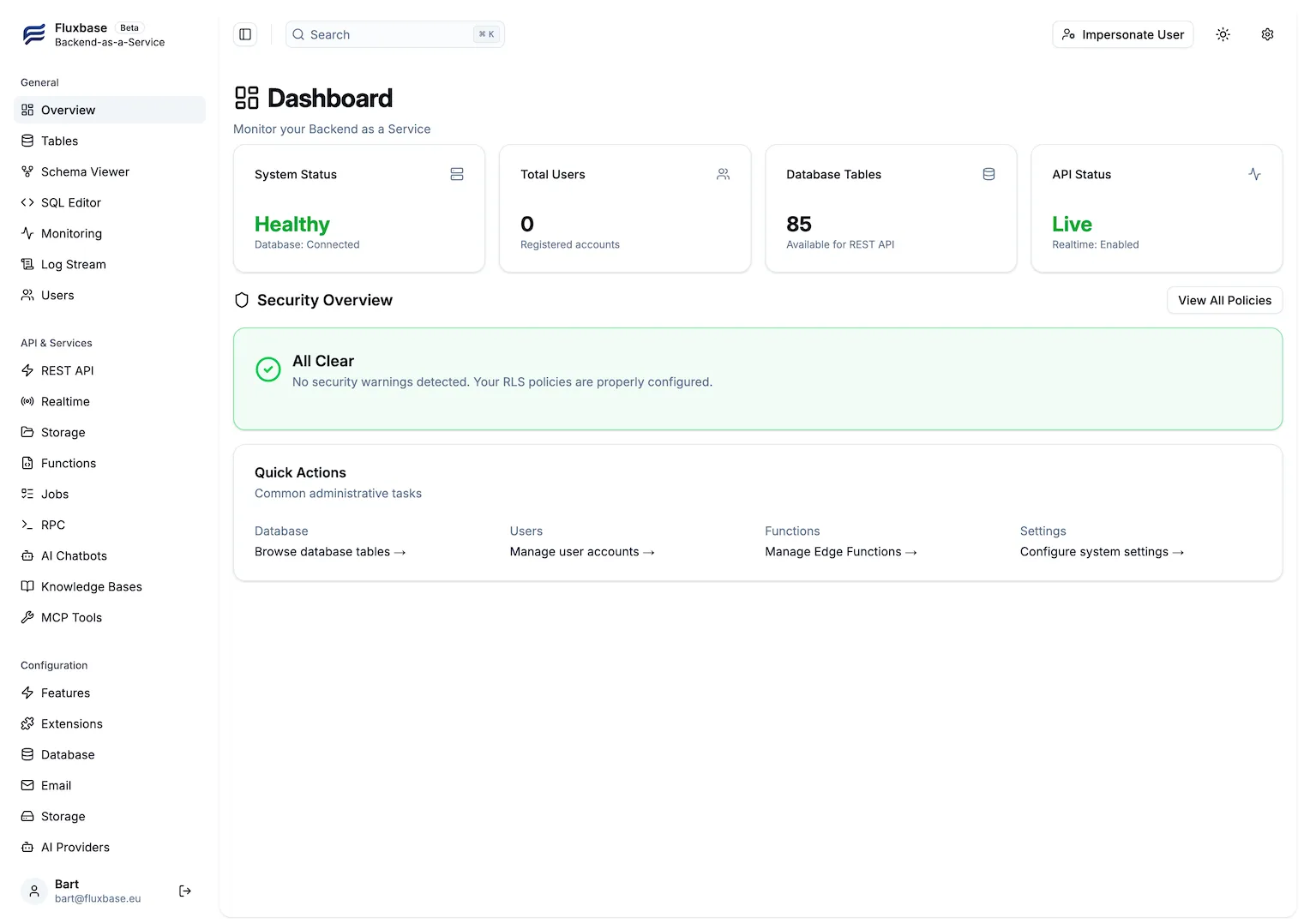
The dashboard provides at-a-glance status of your system including database health, user counts, table statistics, and API status.
Features
Section titled “Features”🗄️ Database Explorer
Section titled “🗄️ Database Explorer”Browse, query, and edit your database tables directly from the web interface.
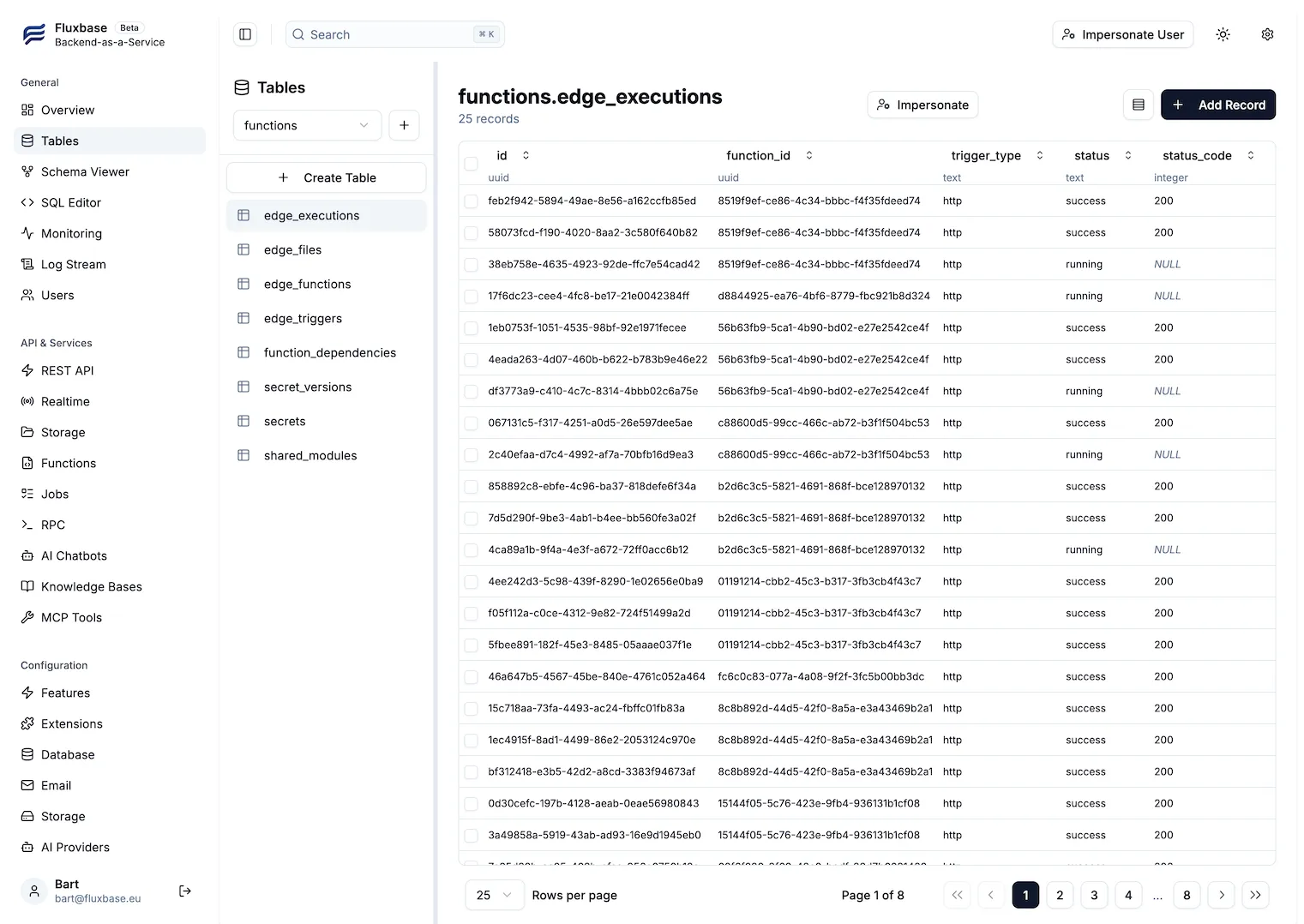
Key features:
- View all tables and schemas
- Filter, sort, and search data
- Inline editing with validation
- Batch operations
- Real-time updates
🔍 Schema Viewer
Section titled “🔍 Schema Viewer”Visualize your database structure with an interactive ERD (Entity Relationship Diagram).
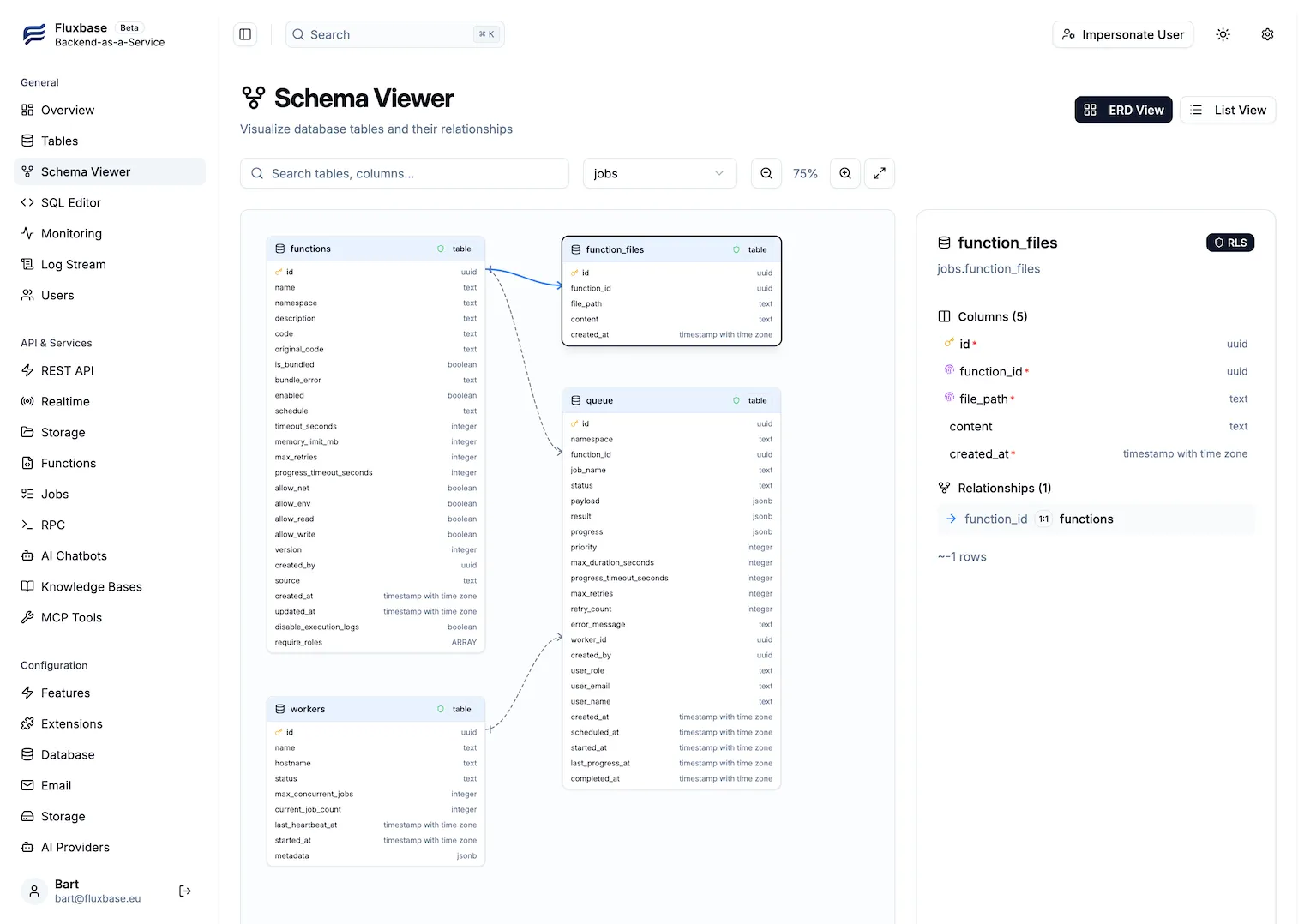
Features:
- Visual representation of tables and relationships
- Toggle between ERD and list views
- Search tables and columns
- View column types and constraints
- RLS policy indicators
💻 SQL Editor
Section titled “💻 SQL Editor”Execute SQL and GraphQL queries directly against your database.
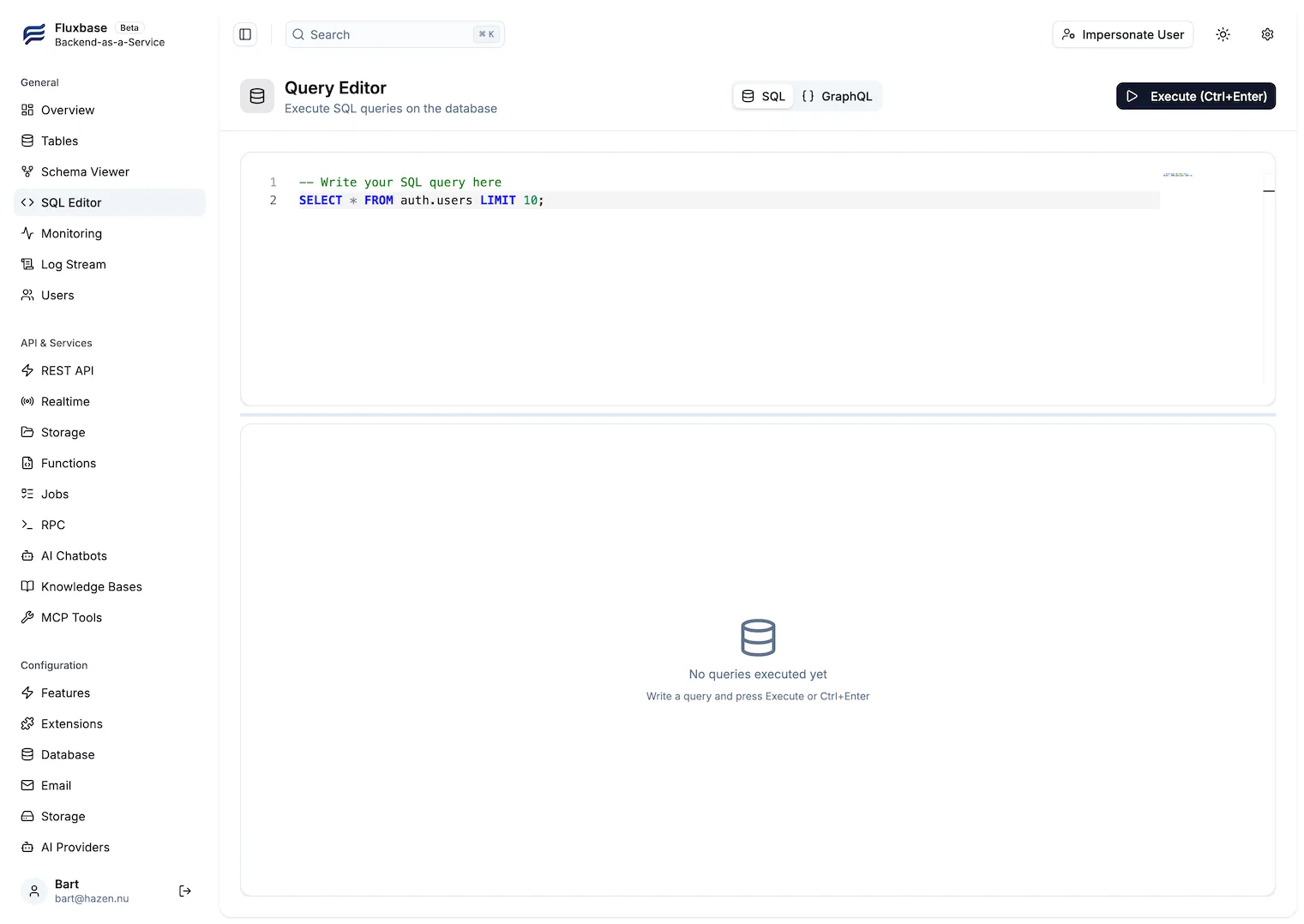
Features:
- SQL syntax highlighting
- GraphQL support
- Query history
- Export results
- Keyboard shortcuts (Ctrl+Enter to execute)
👥 User Management
Section titled “👥 User Management”Manage users, roles, and permissions.
Capabilities:
- List all users with enriched metadata
- Invite new users
- Update user roles
- Reset passwords
- Delete users
🎭 User Impersonation
Section titled “🎭 User Impersonation”View the database as different users to debug issues and test RLS policies.
Learn more: User Impersonation Guide
📊 Analytics & Monitoring
Section titled “📊 Analytics & Monitoring”Monitor your Fluxbase instance health and usage.
Metrics available:
- Active sessions
- Database connection pool status
- Query performance
- Storage usage
Getting Started
Section titled “Getting Started”Access the Admin Dashboard
Section titled “Access the Admin Dashboard”- Navigate to
http://localhost:8080/admin(or your configured admin URL) - Log in with your admin credentials
- If this is first setup, create your admin account
Initial Setup
Section titled “Initial Setup”On first launch, you’ll be prompted to create an admin account:
- Enter your email address
- Choose a strong password
- Provide your name
- Click “Create Admin Account”
Your admin credentials will be stored securely and you’ll be logged in automatically.
Navigation
Section titled “Navigation”The admin dashboard is organized into main sections:
- 📋 Tables - Database explorer with user impersonation
- 👥 Users - User management interface
- ⚙️ Settings - Instance configuration
- 📊 Analytics - Usage metrics and monitoring
Security Considerations
Section titled “Security Considerations”Admin Access Control
Section titled “Admin Access Control”- Admin accounts are separate from regular user accounts
- Admin credentials are stored in the
dashboard_userstable - Supports 2FA for enhanced security
- Session management with configurable timeouts
Audit Logging
Section titled “Audit Logging”All administrative actions are logged for compliance:
- User impersonation sessions
- User management operations
- Configuration changes
- Login attempts
Query the audit logs:
-- View recent impersonation sessionsSELECT * FROM auth.impersonation_sessionsORDER BY started_at DESCLIMIT 50;
-- View admin login historySELECT * FROM dashboard_auth.sessionsORDER BY created_at DESC;
Best Practices
Section titled “Best Practices”- Use strong passwords - Require complex passwords for admin accounts
- Enable 2FA - Add an extra layer of security
- Limit admin access - Only create admin accounts for trusted personnel
- Review audit logs - Regularly check for suspicious activity
- Keep sessions short - Configure appropriate session timeouts
Common Tasks
Section titled “Common Tasks”Managing Admin Users
Section titled “Managing Admin Users”List all admin users:
fluxbase admin users listInvite a new admin user:
fluxbase admin users invite --email admin@example.comfluxbase admin users invite --email admin@example.com --role dashboard_adminView admin user details:
fluxbase admin users get <user-id>Delete an admin user:
fluxbase admin users delete <user-id>Managing Admin Invitations
Section titled “Managing Admin Invitations”List pending invitations:
fluxbase admin invitations listfluxbase admin invitations list --include-accepted --include-expiredRevoke a pending invitation:
fluxbase admin invitations revoke <token>Managing Admin Sessions
Section titled “Managing Admin Sessions”List active admin sessions:
fluxbase admin sessions listRevoke a specific session:
fluxbase admin sessions revoke <session-id>Revoke all sessions for a user:
fluxbase admin sessions revoke-all <user-id>Resetting Admin Password
Section titled “Resetting Admin Password”fluxbase admin password-reset --email admin@example.comManaging Application Users
Section titled “Managing Application Users”The fluxbase users command manages application end users (not admin users):
# List all app usersfluxbase users list
# Search users by emailfluxbase users list --search john
# View user detailsfluxbase users get <user-id>
# Invite a new app userfluxbase users invite --email user@example.com
# Delete an app userfluxbase users delete <user-id>
Guides
Section titled “Guides”Explore detailed guides for specific admin features:
- User Impersonation - Debug issues by viewing data as different users
- More guides coming soon…
Support
Section titled “Support”Need help with the admin dashboard?
- 📖 Check the documentation
- 💬 Join our Discord community
- 🐛 Report issues on GitHub